
The core mechanism for achieving DisplayPort or HDMI signal output over USB-C is Alternate Mode. It allows the high-speed pins within the USB-C interface originally designated for data transfer to be “reassigned” at the protocol layer for use by video transmission protocols.
The following diagram clearly illustrates the complete workflow and core technical principles of this process:

Below is a detailed explanation of the key technical steps, necessary conditions, and practical considerations involved in implementing this functionality.
I. Prerequisites: Hardware and Protocol Support

To enable this feature, all three of the following hardware conditions must be met:
- Source Device Support: Your laptop, phone, or tablet must support DisplayPort Alternate Mode at the hardware and firmware level of its USB-C port. (HDMI output is also typically based on conversion from this mode).
- Cable Support: A “Full-Featured” USB-C cable must be used. These cables internally connect all high-speed data lines and the CC/SBU wires. Inexpensive charging cables may only have power wires connected.
- Monitor/Dock Support: The target monitor must either have a USB-C port that supports DisplayPort Alternate Mode, or you must use a USB-C dock/adapter that contains a protocol conversion chip (DisplayPort to HDMI).
II. Core Technology: Alternate Mode Workflow
The workflow follows strict protocol steps, as shown in Phase 1 and 2 of the diagram. The CC (Configuration Channel) pins act as the “master controller” in this process:
- Connection & Power Negotiation: After connection, the CC pins first handle detection, orientation identification, and basic USB Power Delivery (PD) negotiation.
- Mode Discovery: The source device (e.g., computer) sends a structured VDM (Vendor Defined Message) via the CC line, asking: “Which Alternate Modes do you support?”
- Mode Entry: The monitor or dock replies: “I support DisplayPort Alternate Mode (ID: 0x04).” After confirmation, the source device sends the “Enter Mode” command.
III. Physical Layer Implementation: Pin Remapping (The Key Step)
This is the core physical change. Upon entering Alternate Mode, electronic switches redirect the internal connections of the USB-C port’s high-speed data pins.
Taking the typical 4-lane DisplayPort Alternate Mode as an example:
- The 4 pairs of high-speed differential lanes (TX1±/RX1± and TX2±/RX2±) are directly assigned to DisplayPort’s 4 main data lanes (Lane 0-3).
- The SBU1/SBU2 pins are used as the DisplayPort AUX channel, responsible for transmitting critical low-bandwidth signals like EDID and link management.
- The functions of the USB 2.0 D+/D- pins, VBUS, and CC pins remain unchanged. Therefore, data transfer (at USB 2.0 speeds), power delivery, and communication can continue simultaneously with video transmission.
Bandwidth Allocation Schemes:
- 4-Lane Mode: Highest performance, but USB 3.x data functionality is relinquished.
- 2-Lane Mode: Two lane pairs are reserved for USB 3.x data, while the other two are used for DisplayPort video (halving video bandwidth). This mode is common on docks that need to connect both a high-speed drive and a monitor.
IV. Different Paths for DisplayPort vs. HDMI Output
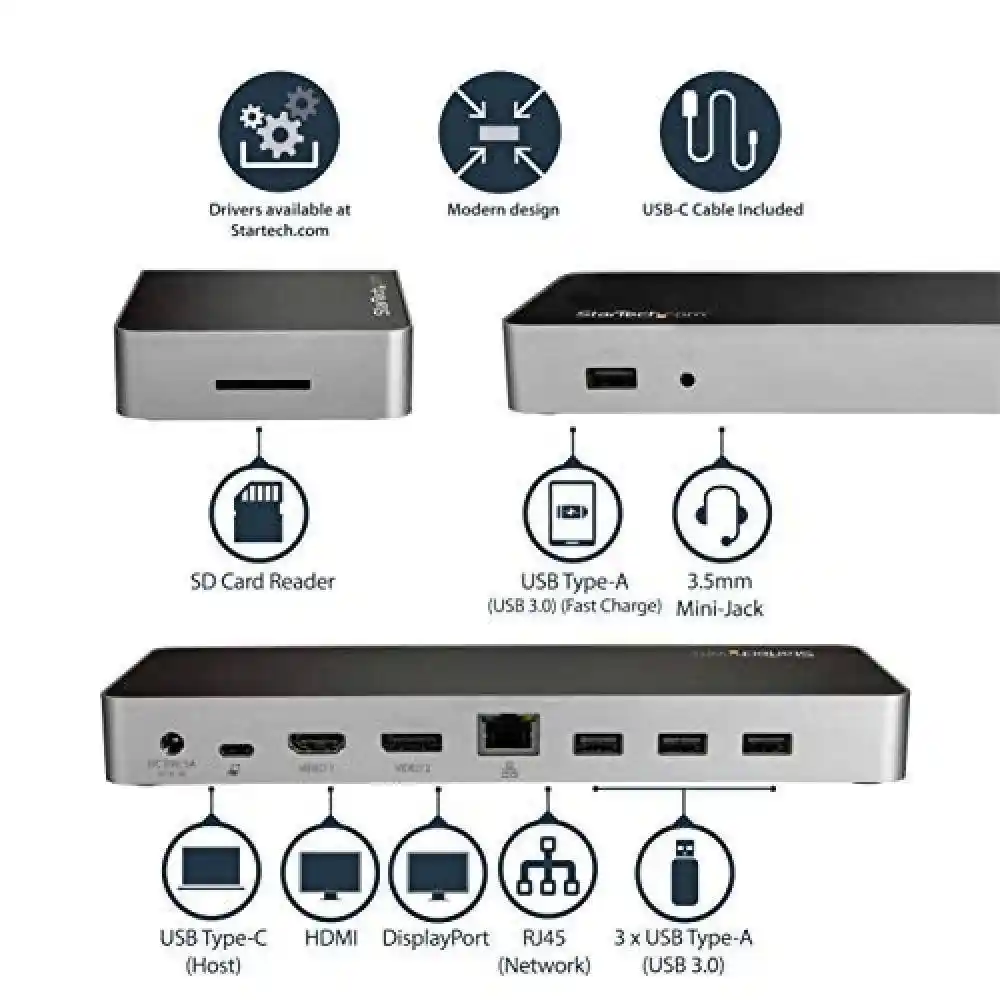
Although the end goal is video, their implementation paths differ:
- DisplayPort Output (Native Path)
This is the most direct “passthrough” method. After remapping, the USB-C port outputs a native DisplayPort signal. If a monitor has a native USB-C (DP Alt Mode) input port, it can decode and display this signal directly, offering lossless quality and maximum performance. - HDMI Output (Conversion Path)
Since a pure “HDMI Alternate Mode” is not widely adopted, common USB-C to HDMI conversion works as follows:- The source device first outputs a native DisplayPort signal via DP Alternate Mode.
- This signal passes through a dedicated conversion chip inside the cable or adapter, which converts the DisplayPort protocol to HDMI protocol in real-time.
- The signal is finally output from a standard HDMI physical port.
- This is why USB-C to HDMI cables/adapters are often more expensive and have a “bulge” (containing the chip) compared to passive USB-C to DP cables.
What Is the Difference Between DisplayPort and HDMI?
V. Practical Application and Important Notes
Single-Cable Scenario: When you connect a laptop to a monitor with a single full-featured USB-C cable, the monitor not only receives the video signal (via DP Alt Mode) from the laptop’s GPU but can also charge the laptop via the same cable’s VBUS and connect peripherals through the monitor’s built-in USB hub using the retained USB 2.0 channel, achieving a “one-cable solution.”
Key Advice (Troubleshooting Guide):
- Verify Port Capability: Not all USB-C ports support video output. Always check the device manual to confirm the port is marked with DP/HDMI symbols or “Video Output”.
- Invest in Quality Cables: To achieve 4K/60Hz or higher output, purchase cables explicitly labeled as supporting “USB 3.1 Gen2/USB4”, “DP 1.4 Alt Mode”, and “8K/4K Video”.
- Understand Performance Trade-offs: In 2-lane DP mode, performing heavy USB 3.x data transfer (e.g., reading/writing to an external SSD) concurrently may compete for bandwidth, potentially affecting the refresh rate at high resolutions.
In summary, USB-C utilizes Alternate Mode to achieve a functional “transformation,” dynamically reconfiguring pin purposes at both the protocol and physical layers. Understanding its prerequisites (Alt Mode support, full-featured cables), core process (PD negotiation, pin remapping), and implementation paths (native DP / HDMI conversion) is key to proper use and troubleshooting.
If you want more information, this post may be helpful.


