
DisplayPort no signal issues are usually caused by physical connection problems, incorrect signal source selection, graphics card drivers, or settings. Please follow the steps below, starting with the most common causes and progressing to more complex ones.

Step-by-Step Troubleshooting Guide
You can follow this flowchart to quickly pinpoint the problem of DisplayPort no signal. It summarizes the troubleshooting logic from basic to advanced:
The following are detailed instructions and explanations for each step:
Step 1: Basic Checks (Most Frequently Overlooked)
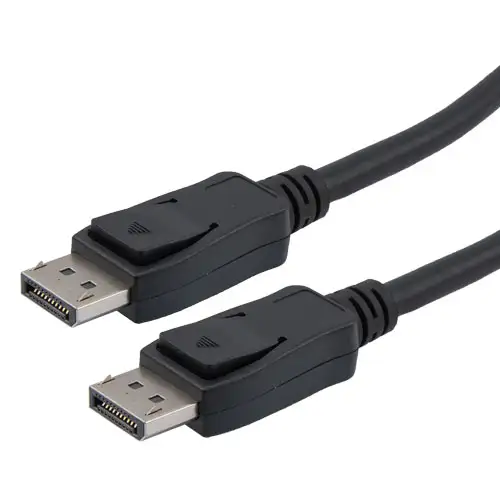
- Check Physical Connection: Unplug both ends of the DP cable and reconnect them securely. The connector has a latch; ensure you hear a “click” sound to confirm it’s fully inserted.
- Check Monitor Input Source: Use the menu buttons on the monitor bezel to manually select “DisplayPort” in the “Input Source” or “Signal” menu. Many monitors do not switch automatically.
Step 2: Hardware and Connection Testing
- Replace the Cable: A faulty or damaged DP cable is a common cause. Use a reliable, appropriately sized (recommended ≤2 meters) DP cable. If possible, test with a known working DP cable.
- Try other interfaces: Use your computer’s HDMI port to connect the monitor. If HDMI works, the problem is likely with the DP port or DP cable; if there is still no signal, you should suspect the graphics card or the monitor itself.
- Confirm graphics card connection (crucial): If your computer has a dedicated graphics card, the monitor cable must be connected to the dedicated graphics card’s output port (lower part of the case), not the motherboard’s video port (upper part of the case). Connecting to the motherboard port will result in no signal.
Step 3: Drivers and System Settings
- Update graphics card drivers:
- If you can access the system using HDMI, visit the NVIDIA, AMD, or Intel website to download the latest graphics card drivers.
- If you only have DP and there is no signal, try restarting your computer and repeatedly pressing F8 (or another key) to enter Safe Mode. In Device Manager, uninstall the graphics card driver, then restart and install the new driver.
- Check BIOS/UEFI settings (for desktop computers or laptops with dual graphics cards):
- Restart your computer and repeatedly press keys such as Del, F2, F10 during startup to enter the BIOS/UEFI settings.
- Look for options related to the graphics card or display output, such as “Primary Display” or “Init Display First”. If you are using a dedicated graphics card, ensure it is set as the primary output device.
- Another common option is “CSM” (Compatibility Support Module). If your monitor is older or your graphics card is newer, you can try enabling CSM.
Advanced and Special Case Troubleshooting
If the above steps do not work, consider the following:
- Monitor cold reset: Turn off the monitor’s power, unplug the power cord and wait for more than 1 minute, then reconnect and turn it on again. This resets the monitor’s internal circuitry.
- Check docking station/adapter: If you are connecting the DP monitor through a USB-C docking station or adapter:
- Confirm that your computer’s USB-C port supports video output (i.e., supports DP Alt Mode).
- Try testing without the docking station, using a direct connection. 3. Hardware Failure Possibilities: Troubleshoot in the following order:
- Computer DP port failure: Try connecting the computer’s DP port to another working monitor.
- Monitor DP port failure: Try connecting the monitor to the DP port of another working computer.
- Graphics card failure: If possible, install the graphics card in another computer for testing.
Summary of Key Troubleshooting Points
- From simple to complex: Reconnecting cables and manually switching the monitor’s signal source solve most problems.
- Replacement testing is key: Replacing the cable and using an HDMI interface are the most direct methods to determine the source of the problem.
- Drivers are the software core: Keeping your graphics card drivers up-to-date can prevent many compatibility issues.
More information, you may want to read this post.
To help me more accurately pinpoint your problem, could you please provide the following information?
- Is your device a desktop or a laptop? What is the specific brand and model?
- Are you using a direct DP cable, or are you connecting through a USB-C docking station/converter?
- Did you previously use the HDMI interface successfully? Or is this the first time you’ve connected this monitor?


