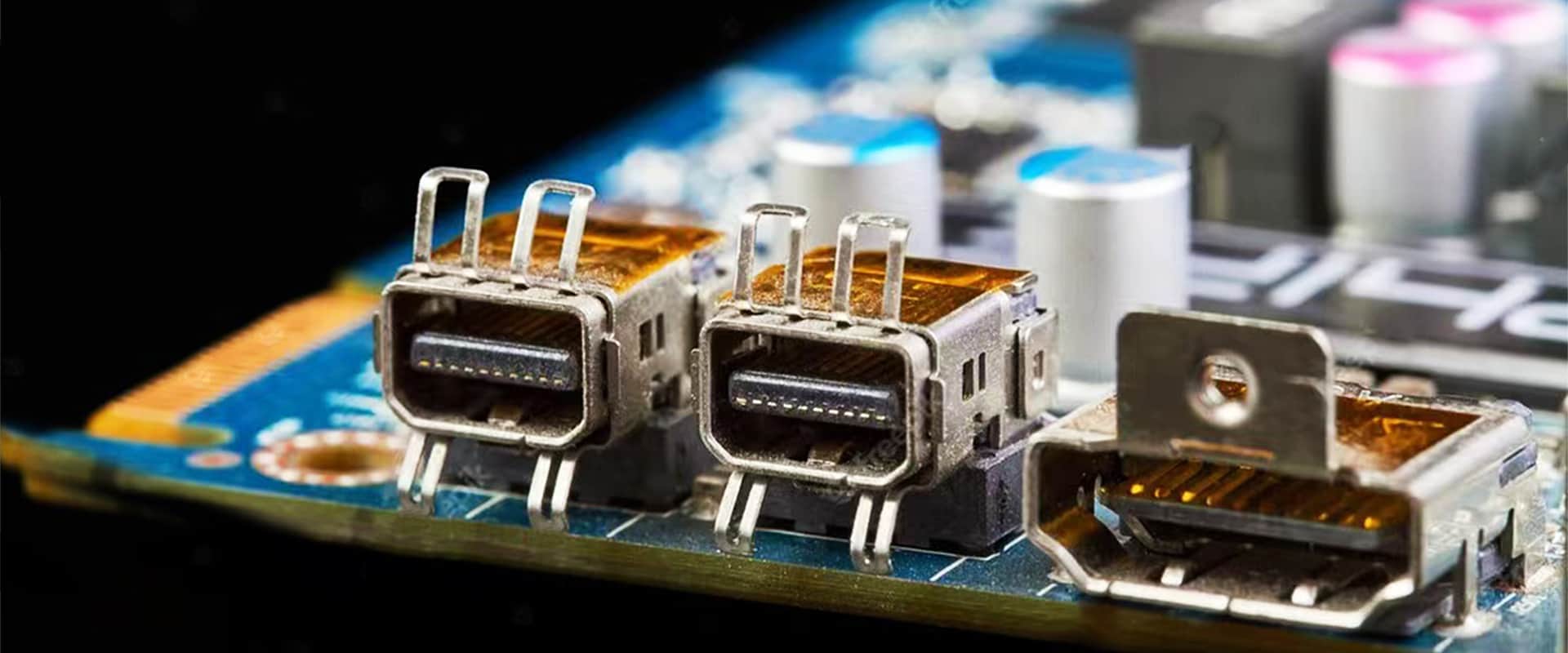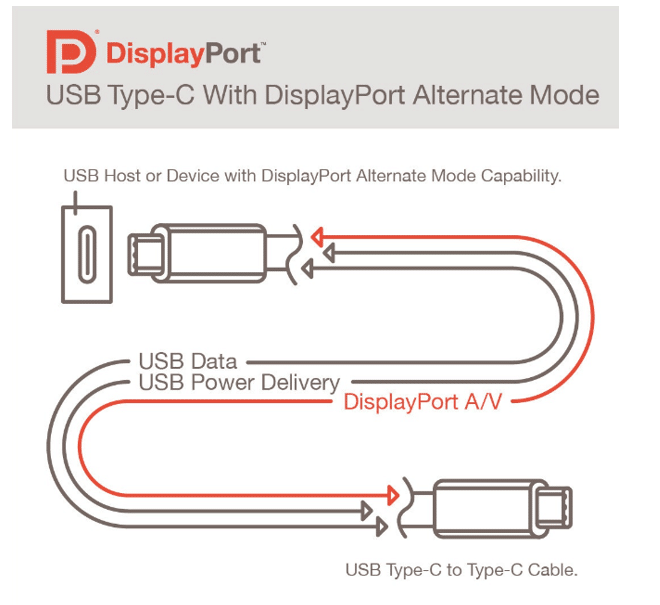
Cleaning the DisplayPort connector and troubleshooting handshake failures can be addressed from the following two main aspects.
Properly Cleaning the DisplayPort Connector Port
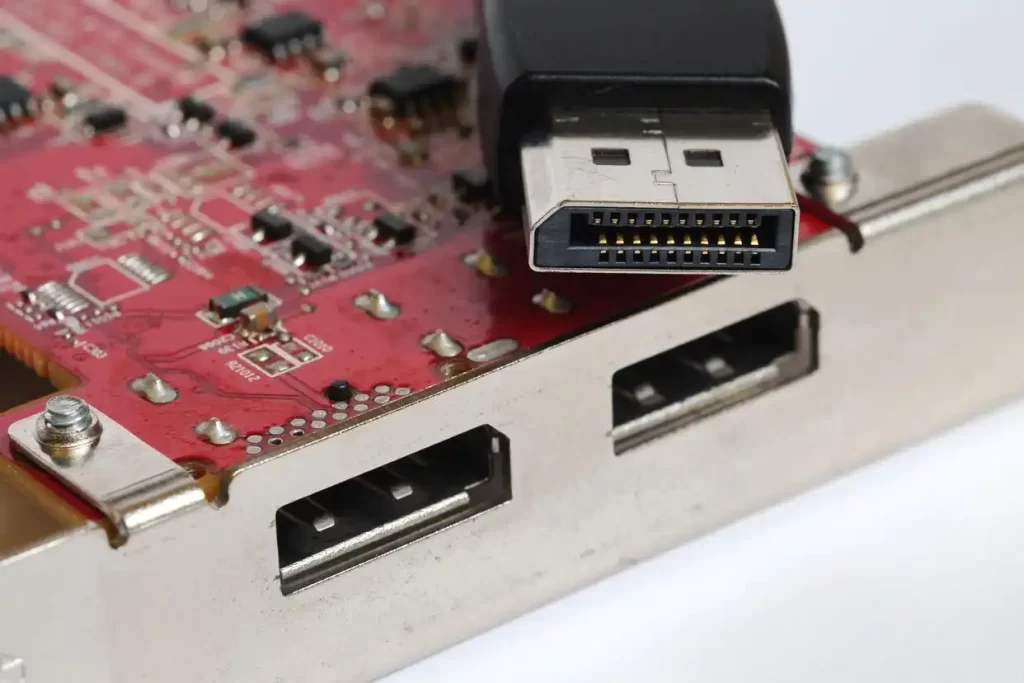
Poor physical connection is a common cause of issues like black screens or flickering. Before attempting complex software settings, ensure the port and cable are clean and securely connected.
You will need: A can of compressed air, a soft small brush (like a clean eyeshadow brush or lens brush), a high-quality magnifying glass or your phone’s macro mode, and isopropyl alcohol with cotton swabs (optional, only for extreme grime).
- Safety First: Before starting, power off your computer and monitor completely and unplug their power cables.
- Visual Inspection: Use a magnifying glass or your phone’s macro mode to carefully look inside the port for any dust, lint, or debris blockage.
- Initial Cleaning:
- Use the can of compressed air. Insert the nozzle into the port and use short bursts to blow away loose dust.
- Gently brush away stubborn dust clinging around the metal contacts with the small brush.
- Note: Do not blow into the port with your mouth to avoid moisture damage.
- Deep Cleaning (If Necessary): If there is stubborn grease or grime inside the port, proceed with caution:
- Dampen a cotton swab with isopropyl alcohol and squeeze out excess liquid so it’s moist but not dripping.
- Gently wipe the metal contacts. Avoid letting alcohol flow deep into the port or device internals.
- Let it sit for a few minutes to ensure complete evaporation before reconnecting power.
- Check the Cable: Also inspect and clean the connectors on both ends of the cable using the same method. Check the cable for any obvious physical damage or sharp bends.
If the problem persists after cleaning and reconnecting, proceed to deeper “handshake” troubleshooting.
Troubleshooting DisplayPort Handshake Issues
The “handshake” is the communication establishment process between devices. Failure can cause “no signal” errors. The flowchart below outlines the complete troubleshooting logic you can follow. Maybe this post can help you to solve the problem of displayport no signal.

Step 1: Basic Physical Checks
This is the most direct approach, as many issues originate here.
- Re-seat Connections: Ensure the cable is securely plugged in at both the computer and the monitor. If your device has multiple DP ports, try a different one.
- Confirm Signal Source: Use the monitor’s On-Screen Display (OSD) menu to confirm the correct DisplayPort input source is selected.
- Substitution Test: If possible, try a different high-quality DisplayPort cable known to work. Alternatively, connect your computer to a different monitor using an HDMI cable to rule out a problem with the computer’s graphics card.
Step 2: Core Settings & Driver Updates
Software and settings are a key focus for troubleshooting.
- Update Graphics Driver: This is one of the most important steps to fix compatibility issues. Go to your graphics card brand’s official website (e.g., NVIDIA, AMD, Intel) to download and install the latest driver. If you currently have a black screen, use an HDMI connection first to update the driver, then switch back to DP.
- Check Display Settings: Sometimes, overly high resolution or refresh rates can cause handshake failure.
- In your operating system’s display settings (e.g., Windows Display Settings), try lowering the resolution and refresh rate to a standard value (e.g., 1080p @ 60Hz).
- Then connect with the DP cable to see if a signal appears, and gradually adjust back to your desired settings.
Step 3: Power Management & Firmware
Deeper issues may require more thorough solutions.
- Perform a Cold Boot: Completely power down both the computer and monitor. Unplug the power cables and the DisplayPort cable from both devices. Wait for 2-3 minutes to allow for a full discharge. Then reconnect the power cables first, followed by the DisplayPort cable, and finally power on. This clears any temporary error states.
- Update GPU DisplayPort Firmware: If you are using an older NVIDIA graphics card (e.g., GeForce 10/16/20 series) that shows a black screen on boot or cannot enter BIOS when connected to a newer DP 1.3/1.4 monitor, the GPU firmware might be outdated.
- NVIDIA provides a dedicated firmware update tool for this. Download the tool on another working computer or on your computer while connected via HDMI.
- This update is generally safe; the tool automatically detects if your card needs and can accept the update.
Professional Advice & Seeking Help
If all the above steps fail to resolve the issue, consider the following:
- Check Motherboard BIOS Settings: Try entering your computer’s BIOS/UEFI setup and locate display output-related options to ensure they are configured correctly.
- Check Monitor Firmware: Some high-end monitors may have firmware updates available. Check the support page on your monitor brand’s official website.
- Contact Official Support: If you suspect hardware failure (like physical damage to the DP port on the GPU or monitor), especially if the device is still under warranty, contacting the manufacturer’s technical support is the best course of action.
In summary, resolving DisplayPort issues typically begins with the simplest physical connection and cleaning, then progresses to driver, setting, and firmware updates. Prioritize safety during cleaning and follow the logical steps during troubleshooting; most problems can be resolved this way.
If you can tell me the specific situation you’re encountering (e.g., black screen throughout the entire boot process or only after entering the OS; the specific models of your graphics card and monitor), I can offer more targeted advice.