
Quick Answer
Not every USB-C port carries DisplayPort Alt Mode. To determine if your USB-C port can output video, look for a DisplayPort (DP) logo or a Thunderbolt symbol next to the port, check the device manufacturer’s technical specifications for “DisplayPort Alt Mode” or “DP Alt Mode” support, or confirm that the USB-C port is a full‑featured USB 3.x or USB4 implementation. If none of these indicators are present, the USB‑C port likely supports only data and/or charging.
What Is USB‑C DP Alt Mode?
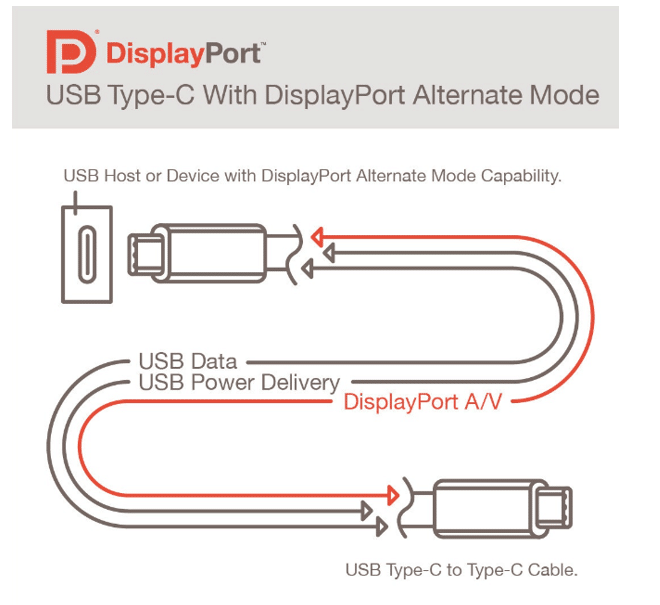
DisplayPort Alternate Mode (DP Alt Mode) is an industry‑standard capability that allows a USB‑C connector to transmit native DisplayPort video signals directly from a host device to a display. Instead of converting or emulating a video signal, the USB‑C high‑speed lanes are repurposed to carry pure DisplayPort protocol packets. This enables a single USB‑C cable to drive 4K, 5K, or even 8K monitors while simultaneously delivering USB data and up to 100W of power — all through one cable. (Read the official specification on VESA’s DisplayPort Alt Mode page.)
When you plug a USB‑C monitor into a laptop and it instantly extends your desktop without any driver installation, DP Alt Mode is doing the work behind the scenes. The capability must be supported by the host GPU/controller, the USB‑C port hardware, the cable, and the display. A break anywhere in that chain means no video, even if the port physically fits.
How Does DP Alt Mode Work at the Pin Level?
USB‑C connectors contain four SuperSpeed differential pairs: TX1, RX1, TX2, RX2. In USB data mode, these pairs carry high‑speed USB signals (e.g., 10 Gbps for USB 3.1 Gen 2). When DP Alt Mode is activated, the host controller re‑assigns some or all of these pairs to transmit DisplayPort main link lanes and an AUX channel.
Depending on the configuration, a USB‑C port can deliver:
- 2 lanes of DisplayPort + USB 3.x data simultaneously (reassigning two of the four SuperSpeed pairs)
- 4 lanes of DisplayPort only (reassigning all four pairs, leaving USB 2.0 data available through the legacy D+/D− pins)
This hardware re‑assignment is why a “charging only” or “USB 2.0 only” USB‑C port cannot magically become a video output — the necessary high‑speed lane switches and controller logic are physically absent.
USB‑C Port Types and Their Video Capabilities
Not all USB‑C ports are created equal. The table below shows which port types can support video output.
| USB‑C Port Type | Data Speed | Charging | Video Output (DP Alt Mode) |
|---|---|---|---|
| Charging‑only USB‑C | None | Yes | No |
| USB 2.0 Type‑C | 480 Mbps | Yes | No |
| USB 3.0/3.1 Type‑C (5 Gbps) | 5 Gbps | Yes | Possibly (must state support) |
| USB 3.1 Gen 2 / 3.2 Type‑C (10/20 Gbps) | 10‑20 Gbps | Yes | Usually (check spec) |
| Full‑featured USB‑C (USB4) | 20‑40 Gbps | Yes (up to 240W) | Yes (mandatory for USB4) |
| Thunderbolt 3 / 4 USB‑C | 40 Gbps | Yes | Yes (DP Alt Mode required) |
If your USB‑C port is only advertised with “USB 2.0” or a wattage rating for charging, it almost certainly lacks DP Alt Mode. Full‑featured USB‑C connectors with a complete 24‑pin configuration are engineered to support advanced functions like DisplayPort Alt Mode when paired with a compatible host controller. Explore our range of full‑featured USB‑C connectors for designs that demand video and high‑speed data.
How to Tell If Your USB‑C Port Supports Video Output
Use these three practical methods to confirm DP Alt Mode capability. None require disassembling your device.
Method 1: Check the Logo Next to the Port
The quickest visual cue is a logo printed or embossed beside the USB‑C port.
- DisplayPort (DP) logo — a stylized “D” with a “P” inside — directly indicates DP Alt Mode support.
- Thunderbolt symbol (a lightning bolt) — Thunderbolt 3 and 4 mandate DP Alt Mode; a Thunderbolt port always supports video output.
- No logo or only a USB trident / battery icon — The port may not support video; additional verification is needed.
StarTech.com offers a detailed FAQ on USB‑C Alt Mode support explaining the required chain of components.
Method 2: Read the Manufacturer Specifications
Search the official product page, user manual, or datasheet for your laptop, tablet, or smartphone. Look for phrases such as:
- “Supports DisplayPort Alt Mode”
- “USB‑C with DP 1.4”
- “Video output via USB‑C”
If the spec sheet lists the USB‑C port only under “Power” or “Data transfer” without mentioning video, assume DP Alt Mode is not supported.
Method 3: Confirm Full‑Feature Connector Integration
At the component level, a full‑featured 24‑pin USB‑C receptacle is required to give the host system the physical lanes necessary for DP Alt Mode. A 6‑pin or 16‑pin USB‑C connector cannot support video output because the high‑speed SuperSpeed pairs are not populated. For engineers integrating USB‑C into a design, always verify that the chosen connector has all 24 pins and that the PCB routes the SuperSpeed pairs to a DisplayPort‑capable controller. Vistar Electronics supplies 24‑pin USB‑C connectors with SMT, DIP, and waterproof variants, ready for video applications.
Need USB‑C Connectors for Video Applications?
If you are designing a product that requires DisplayPort Alt Mode over USB‑C — whether a docking station, a medical monitor, or a portable display — the connector choice is critical. Vistar Electronics supplies full‑featured USB‑C connectors supporting USB 3.x, USB4, USB PD, and DP Alt Mode, with pitches and mounting styles to suit your PCB layout.
USB‑C Cable Requirements for DP Alt Mode
Even if your port and host support DP Alt Mode, the cable must also be appropriate.
- Passive USB‑C cables marked “Gen 1” (5 Gbps) or “Gen 2” (10 Gbps) can carry DP Alt Mode at reduced resolutions and refresh rates.
- For 4K 60Hz or higher, a cable rated for 10 Gbps or higher with proper shielding is recommended.
- Thunderbolt‑certified passive or active cables guarantee DP Alt Mode support and often support higher bandwidths.
- Avoid charging‑only cables that do not wire the SuperSpeed pairs — they will never carry video.
Always match the cable’s capability to the resolution and refresh rate you intend to drive.
Common Problems and Troubleshooting
1. “USB‑C to HDMI adapter works, but direct USB‑C monitor shows no signal.”
This often means your USB‑C port supports DisplayPort Alt Mode (the adapter uses it) but the monitor’s USB‑C port expects a different video protocol or requires power delivery first. Verify the monitor’s input setting.
2. “Video works on one USB‑C port but not the other.”
Many laptops have only one USB‑C port with DP Alt Mode; the others are data/charging‑only. Check the symbol or spec for each port individually.
3. “External monitor flickers or drops out.”
A low‑quality or bandwidth‑constrained cable is usually the cause. Swap to a certified cable rated for at least the required video bandwidth.
FAQ
Does every USB‑C port support DisplayPort Alt Mode?
No. Some USB‑C ports only support charging or USB 2.0 data. DisplayPort Alt Mode requires compatible hardware support from the host controller, PCB routing, USB‑C connector (full‑featured 24‑pin), cable, and display. The connector itself is a passive component; the capability depends on the complete system design.
How can I tell if my USB‑C supports video output?
Look for a DisplayPort (DP) logo or Thunderbolt symbol next to the port, check the manufacturer’s technical specifications for “DisplayPort Alt Mode,” or confirm that the device lists video output as a feature of its USB‑C port.
Can a USB‑C connector alone support DisplayPort Alt Mode?
A USB‑C connector that has all 24 pins can physically support DP Alt Mode, but the feature requires an integrated host controller that implements the DisplayPort protocol over those lanes. The connector is an enabler, not the sole determinant.
Is Thunderbolt the same as DP Alt Mode?
Thunderbolt 3 and 4 include DP Alt Mode as a mandatory feature. If you have a Thunderbolt USB‑C port, it definitely supports video output via DisplayPort Alt Mode, in addition to PCIe and other protocols.
Do I need a special cable for DP Alt Mode?
Yes. The cable must wire all SuperSpeed pairs and be rated for the required data rate (10 Gbps or higher for 4K 60Hz). Charging‑only or USB 2.0 cables will not work.
Custom USB‑C Connector Solutions
Vistar Electronics offers a comprehensive portfolio of USB‑C connectors engineered for video, power, and data applications. Our range includes 6‑pin, 16‑pin, and full 24‑pin configurations, available in SMT, through‑hole, vertical, mid‑mount, and IP67/IP68 waterproof options. Whether you are prototyping a new USB‑C dock or sourcing for a high‑volume consumer device, our engineering team can support you with samples, footprints, and electrical performance data.
Further reading:


